
Docker guide, build a PHP Application
 · 13 min
Step by step guide showing how to build a simple application using Docker.
Prerequisites
In this guide we will assume the following statements :
- docker cli is installed (required)
- you have a basic understanding of php (should have)
- you’re familiar with dependency manager tool like composer (should have)
Step 1 - Run php-fpm & nginx containers separately
A PHP application is running over a web server. So first we have to select which php version to use.
In this guide we will use php 8.4 with nginx as web server.
Docker images can be pulled from Docker public registry and we can search for images using docker cli
docker search php
Many images are listed, but we will use the official docker image :
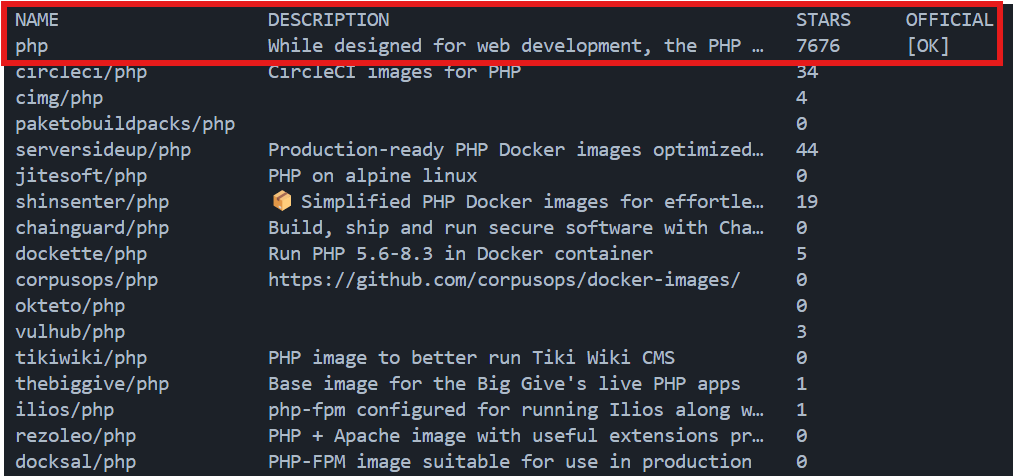
As we can see the name of the image is php without prefix. So we can access to the image using the url [https://hub.docker.com//php](https://hub.docker.com//php).
All available releases are listed in the tags tab.
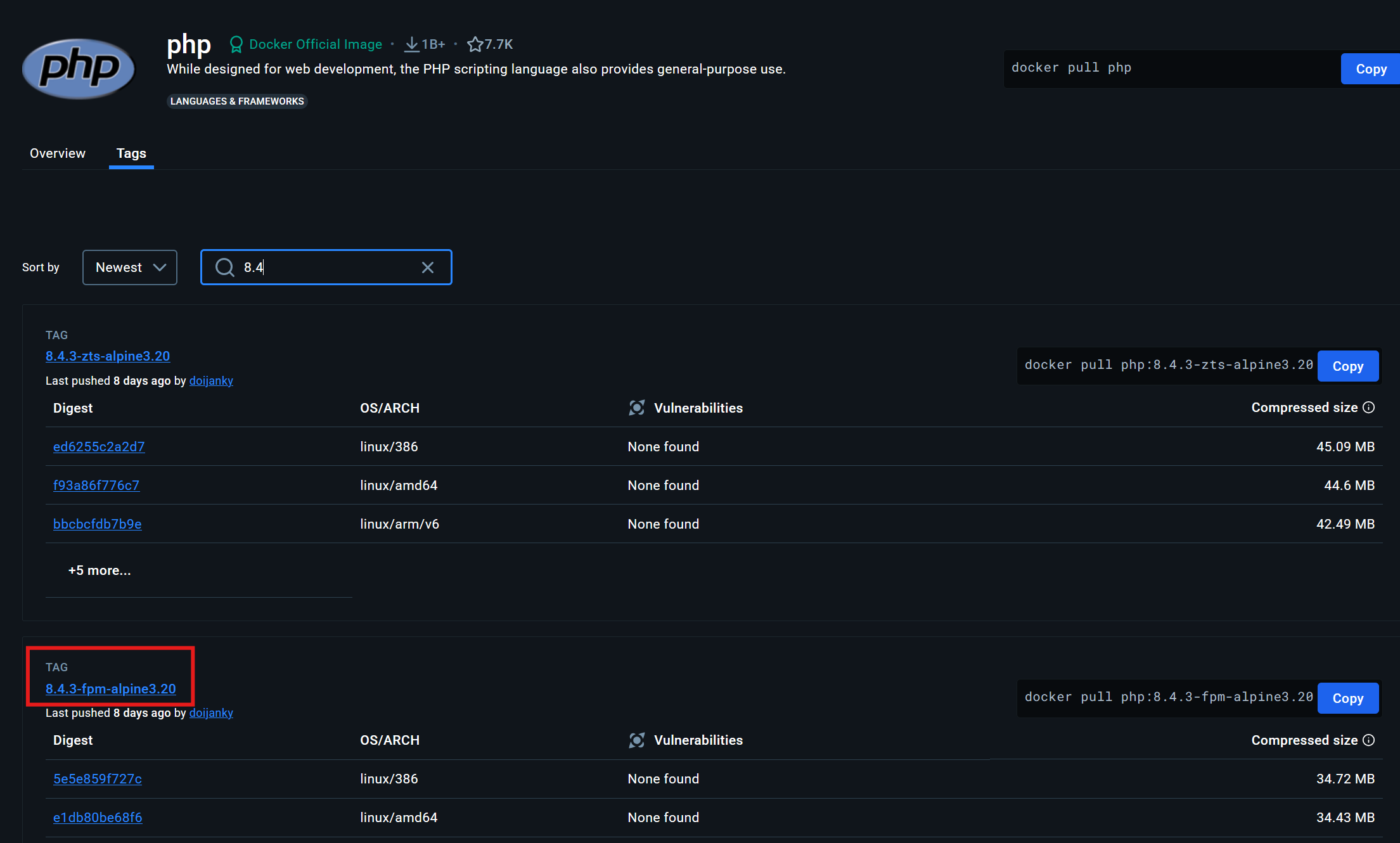
For this guide we will use 8.4.3-fpm-alpine3.20, so let’s go and start the container!
docker run php:8.4.3-fpm-alpine3.20
Docker will first pull the image from the registry and next start php-fpm
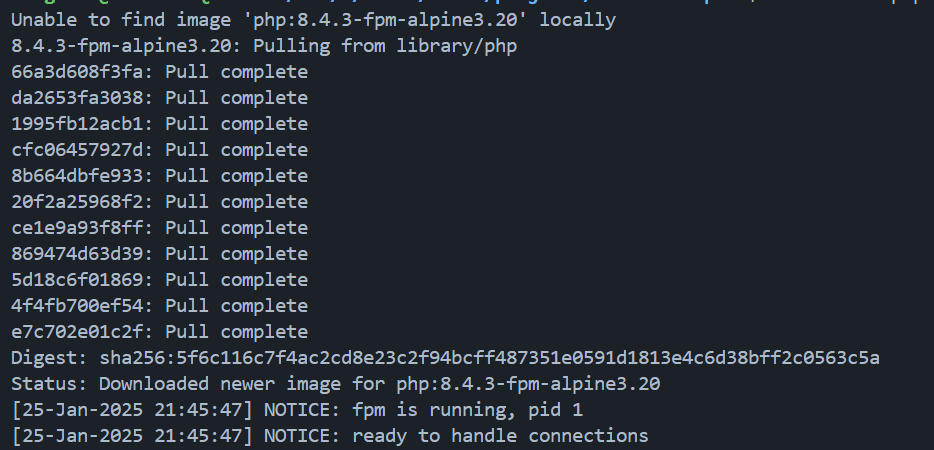
The container is now ready to handle connections, it can be stopped by using Ctrl C.
We can reproduce the same approach in order to find nginx image, we will use the latest available release :
docker run nginx
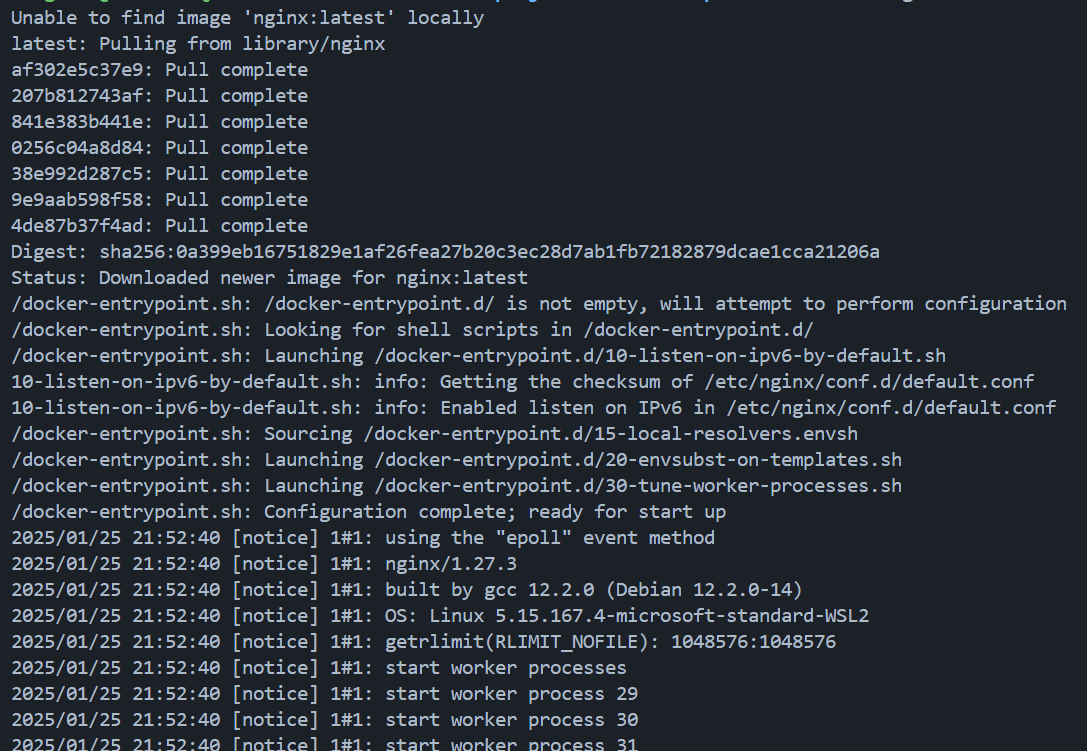
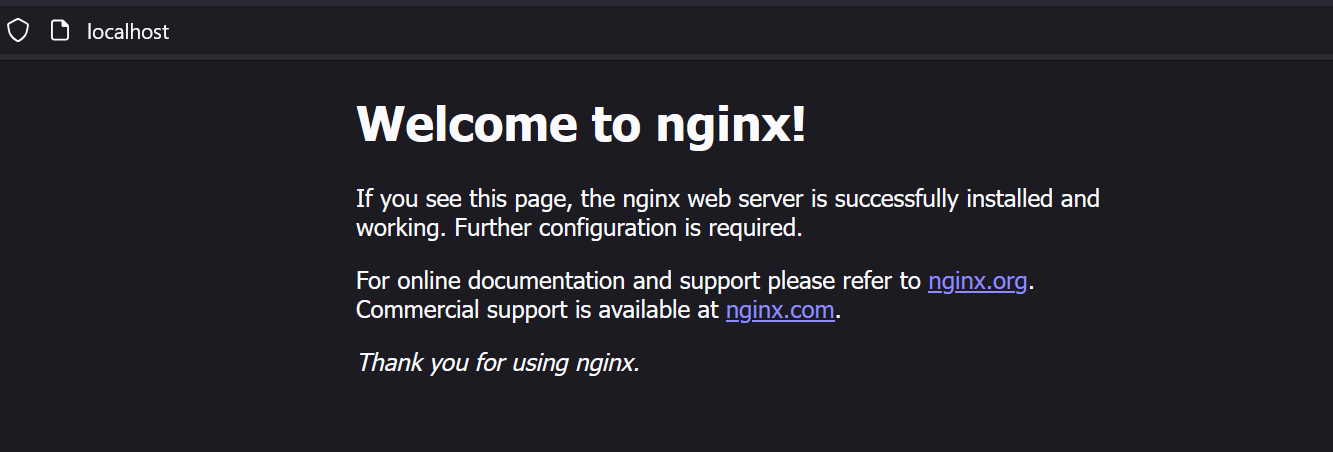
The container start the server with multiple workers and it is ready to use. However at this point if you open your browser to http://localhost nothing will be displayed. In order to access the nginx welcome page, we have to forward the port 80, so first we have to stop the container using Ctrl C and next run the following command
docker run -p 80:80 nginx
Tada  , we can now see the nginx welcome page when browsing to localhost
Step 2 - Stronger togethers, display phpinfo()
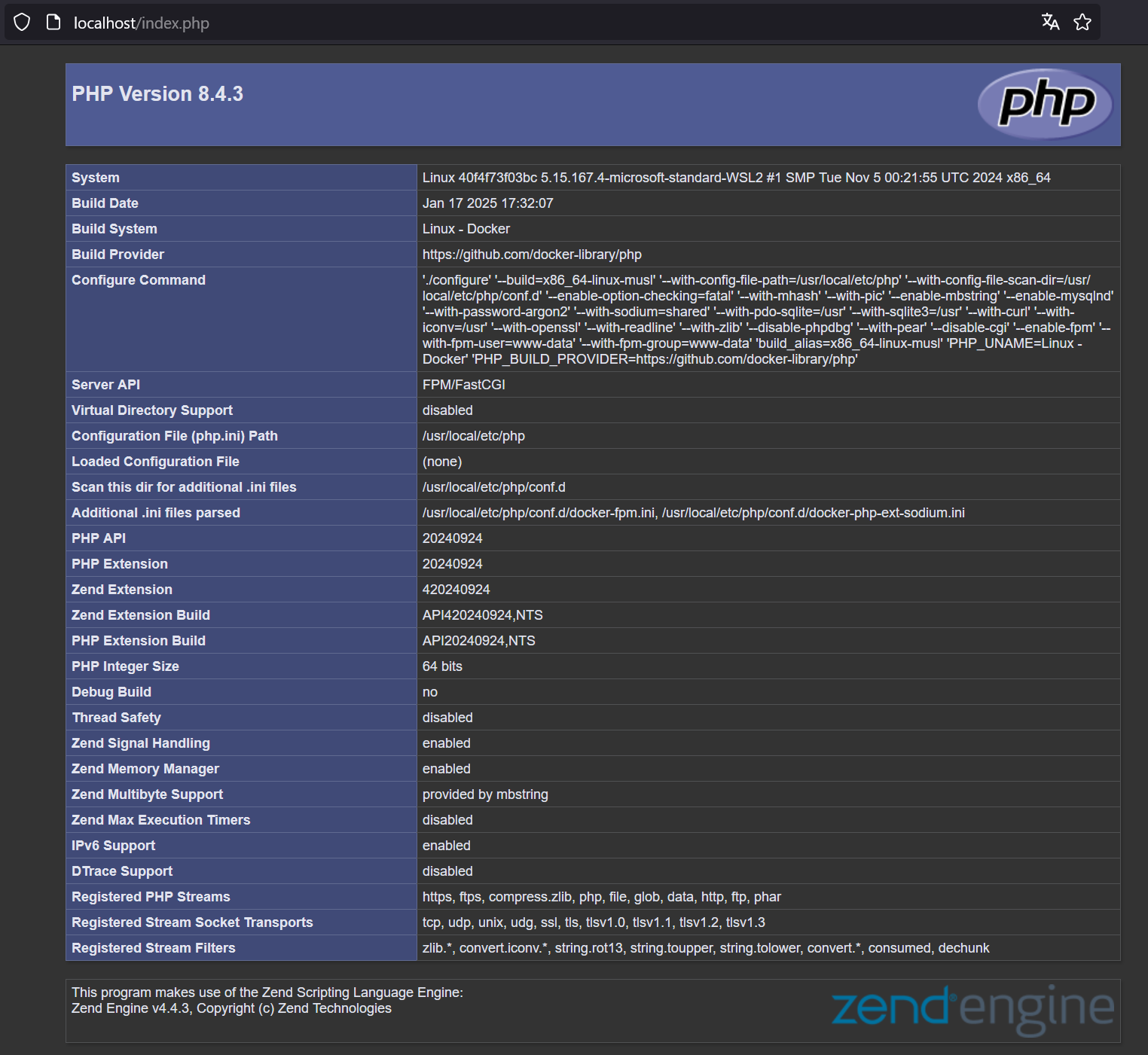
We are now able to start php and nginx containers, the next step will be to use them together and display a very simple index.php file. Let’s go!
Create index.php file
mkdir src
touch src/index.php
echo -e "<?php\n\nphpinfo();" > src/index.php
Add nginx configuration
mkdir -p docker/nginx
touch docker/nginx/nginx.conf
nginx.conf file content
user www-data;
worker_processes 5;
events { worker_connections 1024; }

http {
    default_type application/octet-stream;
    charset utf-8;
    server_tokens off;
    tcp_nopush on;
    tcp_nodelay off;

    server {
        root /usr/share/nginx/html;

        location / {
            try_files $uri /index.php$is_args$args;
        }
        location ~ ^/(index)\.php(/|$) {
            fastcgi_pass php:9000;
            fastcgi_split_path_info ^(.+\.php)(/.*)$;
            include fastcgi_params;
            fastcgi_param SCRIPT_FILENAME $document_root$fastcgi_script_name;
            fastcgi_param DOCUMENT_ROOT $document_root;
        }
    }
}
Create a new docker network in order to allow communication between containers
docker network create app-network
Start php-fpm
docker run --rm --network app-network --name php \
  -v $PWD/src:/usr/share/nginx/html \
  php:8.4.3-fpm-alpine3.20
Start nginx
docker run --rm --network app-network --name nginx -p 80:80 \
  -v $PWD/docker/nginx/nginx.conf:/etc/nginx/nginx.conf:ro \
  -v $PWD/src:/usr/share/nginx/html \
  nginx
Result on http://localhost
Step 3 - Display data using PostgreSQL & Doctrine
In this step we will add a PostgreSQL database and use the Doctrine orm in order to manipulate entities.
Doctrine can be installed by using composer, so we will init a new project and require dependencies :
docker run --rm --interactive --tty --volume $PWD:/app composer init
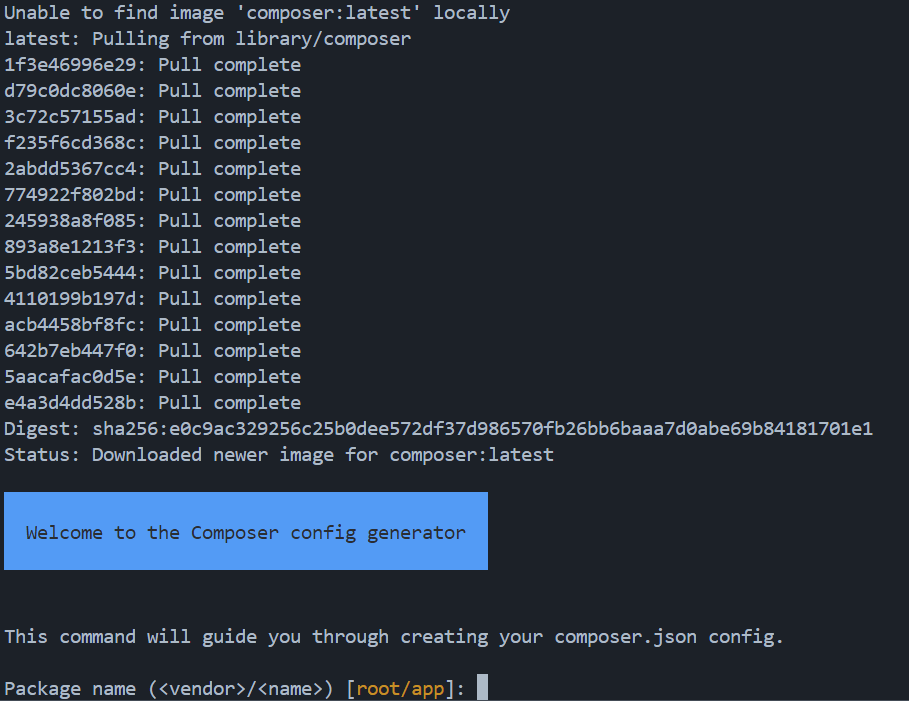
- Package name: docker/app
- Description: leave empty
- Author: leave empty
- Minimum Stability: leave empty
- Package Type: leave empty
- License: leave empty
- Would you like to define dependencies: yes
- Search for a package: doctrine/orm
- Enter the version constraint to require: leave empty
- Search for a package: doctrine/dbal
- Enter the version constraint to require: leave empty
- Search for a package: symfony/cache
- Enter the version constraint to require: leave empty
- Search for a package: leave empty
- Would you like to define your dev dependencies: n
- Add PSR-4 autoload mapping? Maps namespace “Docker\App” to the entered relative path. [src/, n to skip]: tap enter
- Do you confirm generation: yes
- Would you like to install dependencies now: yes
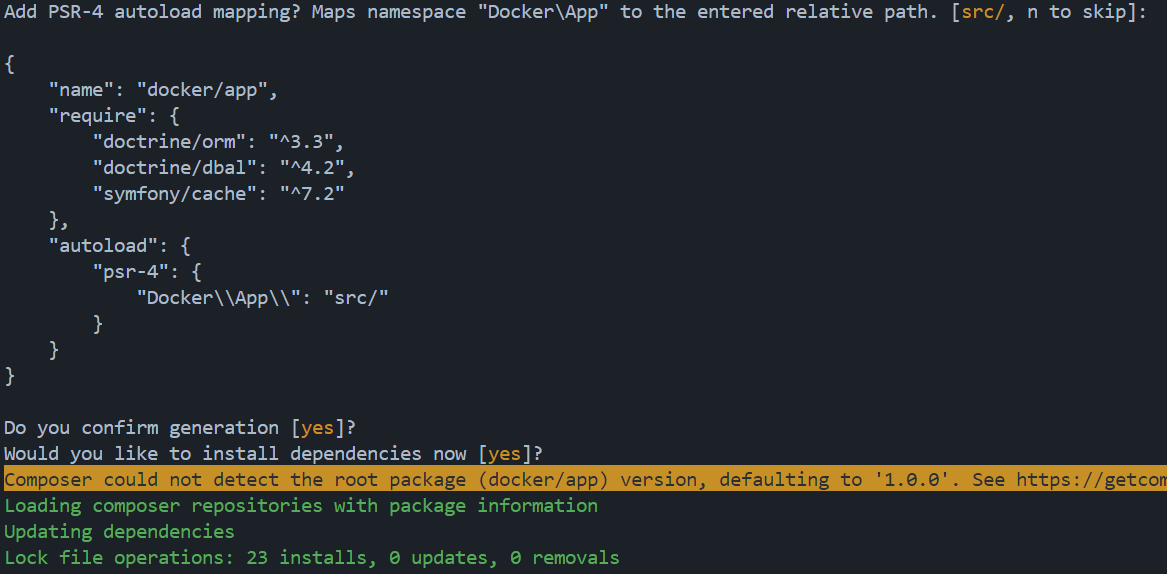

Composer installation is done and we can now see the vendor directory, composer.json and composer.lock files
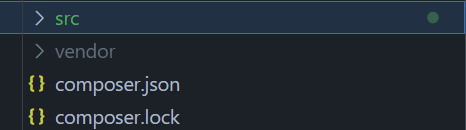
Now we can configure Doctrine.
Create bootstrap.php file
touch bootstrap.php
<?php

use Doctrine\DBAL\DriverManager;
use Doctrine\ORM\EntityManager;
use Doctrine\ORM\ORMSetup;

require_once "vendor/autoload.php";

$config = ORMSetup::createAttributeMetadataConfiguration(
    paths: [__DIR__ . '/src'],
    isDevMode: true,
);

$connection = DriverManager::getConnection([
    'driver' => 'pdo_pgsql',
    'user' => 'postgres',
    'password' => 'secret',
    'dbname' => 'postgres',
    'host' => 'postgres',
    'port' => 5432
], $config);

$entityManager = new EntityManager($connection, $config);
Create the bin/doctrine file
mkdir bin
touch bin/doctrine
#!/usr/bin/env php
<?php

use Doctrine\ORM\Tools\Console\ConsoleRunner;
use Doctrine\ORM\Tools\Console\EntityManagerProvider\SingleManagerProvider;

require __DIR__ . '/../bootstrap.php';

ConsoleRunner::run(
    new SingleManagerProvider($entityManager)
);
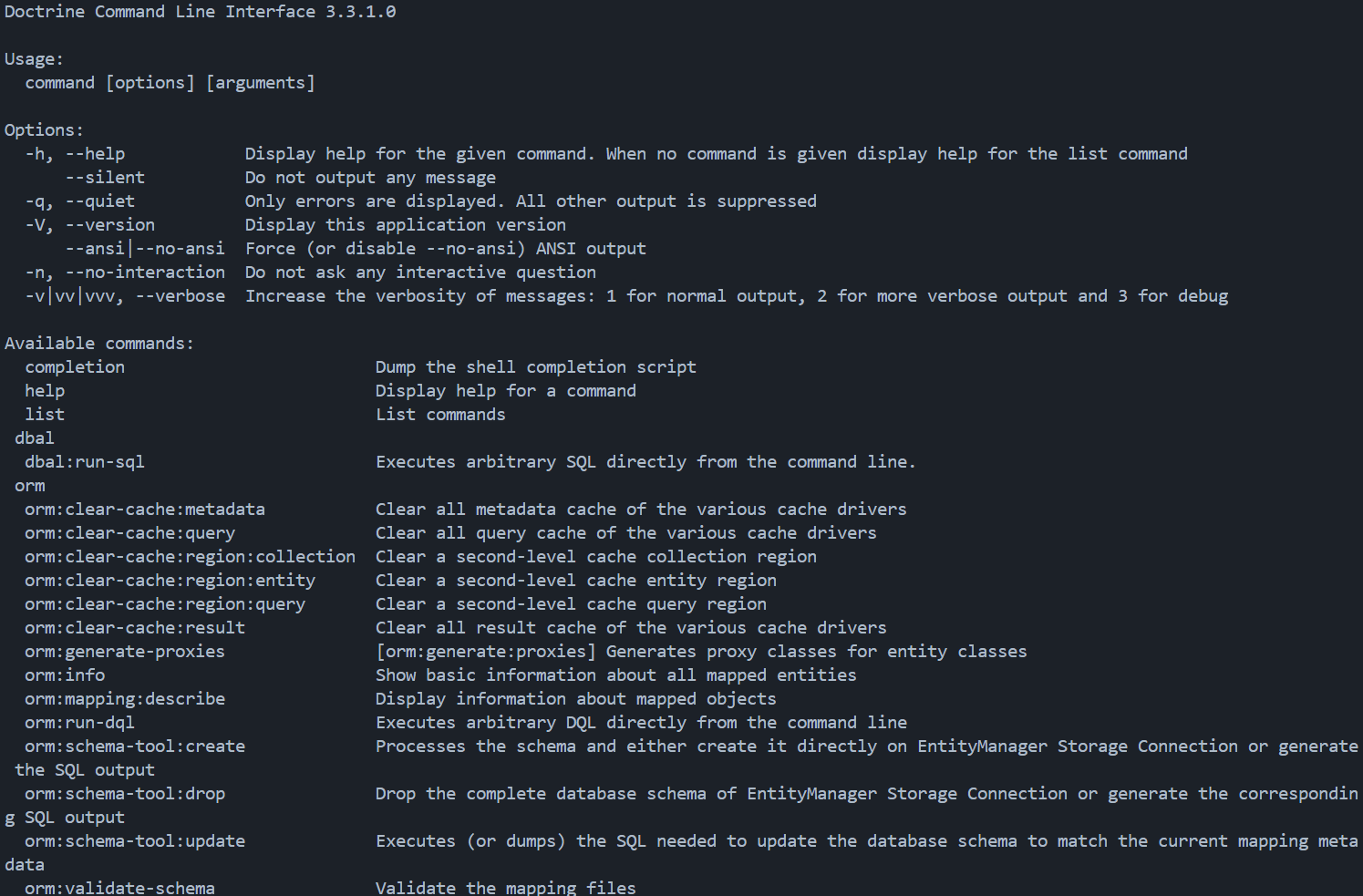
Try the command
docker run --rm --volume $PWD:/user/src/app php:8.4-cli php /user/src/app/bin/doctrine
Result
Create a new Entity
mkdir -p src/BusinessRules/Entities
touch src/BusinessRules/Entities/Album.php
<?php

namespace Docker\App\BusinessRules\Entities;

use Doctrine\ORM\Mapping as ORM;

#[ORM\Entity]
#[ORM\Table(name: 'albums')]
class Album
{
    #[ORM\Id]
    #[ORM\Column(type: 'integer')]
    #[ORM\GeneratedValue]
    public readonly ?int $id;

    public function __construct(
        #[ORM\Column(type: 'string')]
        public string $title,
        #[ORM\Column(type: 'string')]
        public string $artist,
    ) {}

    public function getId(): ?int
    {
        return $this->id;
    }
}
We can now generate the schema with the following command
docker run --rm --volume $PWD:/user/src/app php:8.4-cli \
  php /user/src/app/bin/doctrine orm:schema-tool:update --force --dump-sql
The following error should be displayed
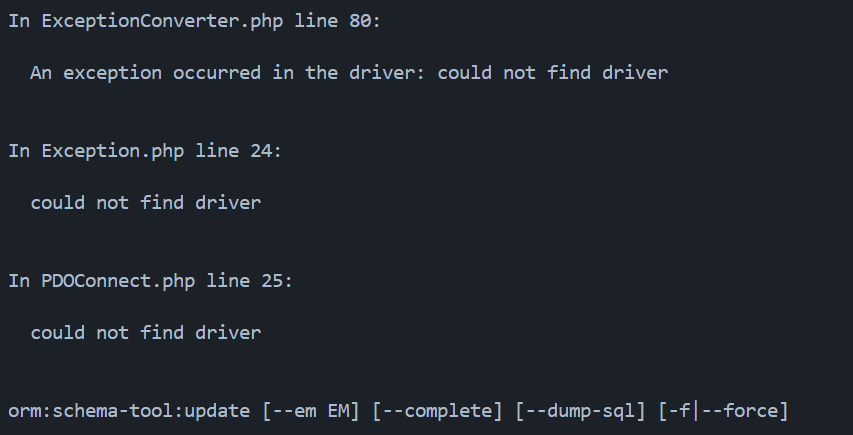
This errors appears because pgsql driver is not installed in php:8.4-cli. In order to fix this error we will use a Dockerfile and add the extension, let’s go!
mkdir -p docker/php-cli
touch docker/php-cli/Dockerfile
FROM php:8.4-cli

RUN apt-get update && apt-get install -y \
    libpq-dev \
    && docker-php-ext-install pdo_pgsql pgsql \
    && apt-get clean && rm -rf /var/lib/apt/lists/*
Build a new image called my-php-cli
cd docker/php-cli
docker build -t my-php:8.4-cli .
We can now view the new image
docker images | grep php

So now we can try to create entities using our newest image my-php:8.4-cli
docker run --rm --volume $PWD:/user/src/app my-php:8.4-cli \
  php /user/src/app/bin/doctrine orm:schema-tool:update --force --dump-sql
Ooops, we’ve got another error
In ExceptionConverter.php line 77:

  An exception occurred in the driver: SQLSTATE[08006] [7] could not translat
  e host name "postgres" to address: Name or service not known

orm:schema-tool:update [--em EM] [--complete] [--dump-sql] [-f|--force]
This error is about unkown host postgres, we have now to start the postgres container 
Open a new terminal and run the following command
docker run --rm --name postgres --network app-network \
  -e POSTGRES_PASSWORD=secret postgres
Next in another terminal
docker run --rm --network app-network --volume $PWD:/user/src/app my-php:8.4-cli \
  php /user/src/app/bin/doctrine orm:schema-tool:update --force --dump-sql
Success!
Updating database schema...

CREATE TABLE albums (
  id INT GENERATED BY DEFAULT AS IDENTITY NOT NULL,
  title VARCHAR(255) NOT NULL,
  artist VARCHAR(255) NOT NULL,
  PRIMARY KEY(id)
);
1 query was executed

[OK] Database schema updated successfully!
So here we go, we can now add some records in our new table ‘albums’, for that, we will use a simple php script.
touch createAlbums.php
<?php

require_once "bootstrap.php";

use Docker\App\BusinessRules\Entities\Album;

$fixtures = [
  [
    'title' => 'Burn My Eyes',
    'artist' => 'Machine Head'
  ],
  [
    'title' => 'Aggression Continuum',
    'artist' => 'Fear Factory'
  ],
  [
    'title' => 'Black Album',
    'artist' => 'Metallica'
  ]
];

foreach ($fixtures as $fixture) {
    $album = new Album(
        title: $fixture['title'],
        artist: $fixture['artist']
    );

    $entityManager->persist($album);
    $entityManager->flush();

    echo "Created album with ID " . $album->getId() . "\n";
}
docker run --rm --network app-network --volume $PWD:/user/src/app my-php:8.4-cli \
  php /user/src/app/createAlbums.php
Result
Created album ID 1
Created album ID 2
Created album ID 3
Last but not least, let’s display the list!
Create a new index.php file in the project root directory
touch index.php
<?php

require_once __DIR__.'/bootstrap.php';

$albumRepository = $entityManager->getRepository(
    Docker\App\BusinessRules\Entities\Album::class
);
$albums = $albumRepository->findAll();

$str = '<h1>Albums</h1>';
$str .= '<ul>';
foreach ($albums as $album) {
    $str .= '<li>'.$album->title.' ('.$album->artist.')</li>';
}
$str .= '</ul>';

echo $str;
Add pgsql extension in php-fpm container
mkdir -p docker/php-fpm
touch docker/php-fpm/Dockerfile
FROM php:8.4.3-fpm-alpine3.20

RUN apk add --no-cache \
    postgresql-dev \
    && docker-php-ext-install pdo_pgsql pgsql
Build the image
cd docker/php-fpm
docker build -t my-php:8.4.3-fpm-alpine3.20 .
Start containers (in separate terminals)
Start postgres
docker run --rm --name postgres --network app-network \
  -e POSTGRES_PASSWORD=secret postgres
Start php-fpm
docker run --rm --network app-network --name php \
  -v $PWD:/usr/share/nginx/html \
  my-php:8.4.3-fpm-alpine3.20
Start nginx
docker run --rm --network app-network --name nginx -p 80:80 \
  -v $PWD/docker/nginx/nginx.conf:/etc/nginx/nginx.conf:ro \
  -v $PWD:/usr/share/nginx/html \
  nginx
Result
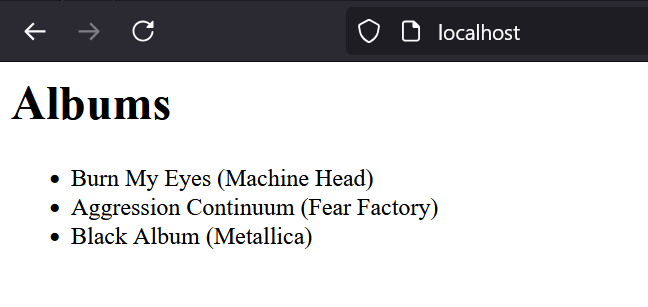
Congratulations! This simple page is displayed using 3 containers, we can see them with this command
docker ps

We can now stop all containers by using Ctrl C in each terminal.
Step 4 - Docker Compose
In this last step we will introduce docker-compose in order to make our life easier Instead of running each container one by one we will create a special file in order to manage them all in one place. Let’s go!
touch docker-compose.yml
networks:
  app-network:

services:

  postgres:
    image: postgres:latest
    container_name: postgres
    environment:
      POSTGRES_PASSWORD: secret
    networks:
      - app-network

  php-fpm:
    build: ./docker/php-fpm
    image: my-php:8.4.3-fpm-alpine3.20
    container_name: php
    working_dir: /usr/share/nginx/html
    volumes:
      - .:/usr/share/nginx/html
    networks:
      - app-network

  nginx:
    image: nginx:latest
    container_name: nginx
    working_dir: /usr/share/nginx/html
    volumes:
      - ./docker/nginx/nginx.conf:/etc/nginx/nginx.conf:ro
      - .:/usr/share/nginx/html
    ports:
      - 80:80
    networks:
      - app-network

  php-cli:
    build: ./docker/php-cli
    image: my-php:8.4-cli
    container_name: php-cli
    volumes:
      - .:/user/src/app
    networks:
      - app-network
    working_dir: /user/src/app

  composer:
    image: composer:latest
    container_name: composer
    volumes:
      - .:/app
Init database
docker-compose run --rm php-cli bin/doctrine orm:schema-tool:update --force --dump-sql
Add records
docker-compose run --rm php-cli php createAlbums.php
Start containers
docker-compose up -d
Add a new dev dependency using composer
docker-compose run --rm composer require --dev phpunit/phpunit
Stop containers and remove all volumes
docker-compose down -v
That’s it! As we can see all settings have been moved into docker-compose.yml, commands are becoming more simple and it allows to start/stop containers in a breeze!
Resources
- https://hub.docker.com
- https://docker.com
- https://getcomposer.org/
- https://www.doctrine-project.org/projects/doctrine-orm/en/current/tutorials/getting-started.html
- https://docs.docker.com/compose/
Thank you for taking the time to read this article and congratulations for running this sample application! Feel free to share your thoughts, experiences, or questions in the comments.